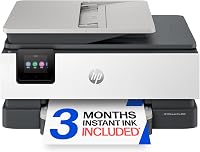
HP OfficeJet Pro 8125 vs 9125: Which Should You Buy? (October 2026)
Choose the HP OfficeJet Pro 8125 for everyday home office printing, or the 9125 for faster color, fax and automatic two-sided scanning. Match the features to your weekly workload and the ink family you’re prepared to use.
On this page (11 sections)
- HP OfficeJet Pro 8125 vs 9125: what is the main difference?
- Which printer fits your weekly workload?
- How much faster is the 9125 for color printing?
- Does the larger paper tray matter?
- Do both models handle two-sided documents?
- Which model has fax, and when is it useful?
- What ink do the OfficeJet models use?
- How should you set up the printer?
- What habits help avoid common printer problems?
- Is the 8125 or 9125 easier to place?
- HP OfficeJet Pro 8125 vs 9125: which should you buy?
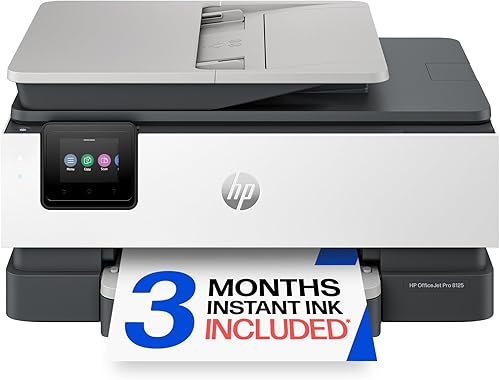
Choose the HP OfficeJet Pro 8125 for routine home office printing, or the 9125 when faster color, fax and automatic two-sided scanning will help with regular office work. In this HP OfficeJet Pro 8125 vs 9125 comparison, the practical decision comes down to workload, document handling and ink compatibility.
Both are wireless color inkjet all-in-ones with print, scan and copy functions, an automatic document feeder and automatic duplex printing. The 9125 adds fax and automatic duplex scanning, so consider the pages you handle each week before paying attention to a longer feature list.

HP OfficeJet Pro 8125 vs 9125: what is the main difference?
The 9125 is designed for heavier document work, while the 8125 covers everyday home office jobs. The clearest differences are color print speed, paper capacity, fax and automatic two-sided scanning.
The 8125’s stated maximum speeds are up to 20 pages per minute in black and 10 in color. The 9125 reaches up to 22 in black and 18 in color, a larger gap for color than for black-and-white work.
The 8125 tray holds 225 sheets, while the 9125 holds 250. That 25-sheet difference may reduce reloads during larger jobs, though it won’t change much if you print only a few pages at a time.
Both print on both sides automatically. The 9125 also scans both sides automatically, which can help if you regularly digitize double-sided forms, invoices or handouts.
Which printer fits your weekly workload?
Choose the 8125 if your regular jobs are documents, reports and occasional scans; choose the 9125 if color jobs and multi-page paperwork are common. A useful way to decide is to list the tasks you do in a typical week and mark which ones currently require extra steps.
The 8125 suits a home office that needs printing, scanning and copying without fax. It has a 2.7-inch color touchscreen, HP app support and enough paper capacity for a steady mix of personal and work documents.
The 9125 fits a shared office where more than one person may send print jobs, or where color pages and two-sided paperwork are part of the routine. Its faster stated color speed, fax and duplex scanning can reduce waiting and manual page handling.
Neither choice makes sense just because it has more features. If you rarely print color or never fax, the 9125’s extras may go unused.
If you don’t scan double-sided documents, its extras may go unused. Routine scanning needs may make the 8125's simpler setup more suitable, even if choosing it to save space could leave you doing more work by hand.
If fax is the only feature missing from the 8125, consider the HP OfficeJet Pro 8139. It adds fax while keeping the 8125’s stated print speeds and tray capacity.
For other HP options by room and workload, see our guide to the best HP printers for home use. If you need a wider range of models for a dedicated work area, our home office printer guide compares printers for that setting.
How much faster is the 9125 for color printing?
The 9125’s stated color speed is up to 18 ppm, compared with up to 10 ppm for the 8125. Its black speed is up to 22 ppm, only 2 ppm above the 8125’s stated maximum.
These are maximum speeds, so the time for a particular job can vary with its layout, image content and print settings. Use the figures to compare the models, not as a promise that every color document will finish at that rate.
If you print a handful of pages now and then, the color speed gap may not affect your day. For a team that sends color reports or presentations to one printer, the 9125 is the clearer fit because its stated maximum is higher.
The 8139 shares the 8125’s stated maximum speeds of up to 20 ppm in black and 10 ppm in color. Fax is its main advantage over the 8125, rather than faster output.
Does the larger paper tray matter?
The 9125 holds 250 sheets, compared with 225 in the 8125 and 8139. The extra capacity helps most when your print routine often runs through a tray’s worth of paper.
Think about how often you refill your current printer and whether more than one person uses it. If you print a small batch each day, the capacity difference is unlikely to determine which model is more useful; if you print reports for a group, fewer reloads can be convenient.
All three models include an automatic document feeder for multi-page scanning or copying. If you’re deciding whether that feature belongs in your workflow, our guide to what an ADF does explains how it handles a stack of pages.
Don’t choose a printer by tray capacity alone. A larger tray won’t solve frequent paper changes, mis-sized paper or a setup where users send jobs from across the house and don’t collect them promptly.
Do both models handle two-sided documents?
Both printers can print on both sides automatically, but the 9125 also scans both sides automatically. This difference matters most when you need digital copies of double-sided paperwork.
Automatic duplex printing helps you save paper without turning each sheet yourself. The 8125 includes that feature, so you can print a two-sided report or handout with fewer manual steps.
With the 9125, automatic duplex scanning can also help with two-sided source documents. If you scan these only once in a while, turning pages manually may be acceptable; if the task repeats each week, the added scanning feature is a more meaningful reason to pick the 9125.
The 8139 has automatic duplex printing, but its listed features don’t include automatic duplex scanning. Check this distinction before buying if your office sends many double-sided forms to digital files.
Which model has fax, and when is it useful?
The 9125 and 8139 include fax; the 8125 does not. If a client, service provider or workplace still requires fax, remove the 8125 from your shortlist first.
The 8139 combines fax with print, scan and copy functions, an automatic document feeder and automatic duplex printing. Its stated speed and tray capacity match the 8125’s, so it makes sense if you want fax without needing the 9125’s faster color output or duplex scanning.
The 9125 also has fax, and adds the larger tray, faster stated speeds and automatic two-sided scanning. It’s the more complete choice when fax is one part of a busier document workflow.
If you use fax rarely, consider whether it needs to be built into the printer at all. A feature you don’t use shouldn’t outweigh cartridge compatibility, workspace fit or the scanning tasks you actually perform.
What ink do the OfficeJet models use?
The 8125 and 8139 use HP 923 cartridges, while the 9125 uses HP 936 cartridges. The cartridge families are different, so a move from one model to the other may mean replacing your spare ink supply.
Before you order cartridges, check the model name on your printer and match the family exactly. Both printers are intended to work with cartridges using original HP chips or circuitry.
Periodic firmware updates maintain those measures.
Each of the three models includes a 3-month Instant Ink trial. A monthly fee applies after the trial unless you cancel, so decide whether a delivery plan suits your print volume before the trial ends.
Our explanation of HP Instant Ink covers how the service works. For broader ink-cost context, our guide to HP Instant Ink vs Smart Tank compares two approaches to keeping ink on hand.
How should you set up the printer?
Start by choosing a stable spot near power and within reach of your paper and documents. Then follow the included setup instructions, load paper, install the supplied cartridges and connect the printer to your network or computer.
Both models offer dual-band Wi-Fi, and both support Ethernet and USB connections. Use Wi-Fi if you want to print from several devices, or consider a wired connection if a fixed desk setup makes that simpler.
The HP app supports printing, scanning, copying and fax functions from a smartphone. Set it up only after the printer is connected, then send a simple document to confirm that your phone and printer can communicate.
Keep the paper tray accessible and leave room for the scanner lid and automatic document feeder. The 8125 is slightly lighter and shorter than the 9125, but both need a clear workspace for loading paper and handling documents.
What habits help avoid common printer problems?
Use the right paper, keep the tray supplied correctly and choose the correct printer model before sending a job. These small checks can prevent wasted pages and repeated print attempts.
Load paper neatly and avoid mixing sizes in one job unless you’ve selected the matching paper settings. If a document has a special layout, review print preview first; this is especially helpful for web pages and emails, where unwanted sections can spill onto extra pages.
The printers offer HP AI features to remove unwanted content from web pages and emails for cleaner print formatting. Check the preview and options for each job so the result matches what you mean to print.
Use the automatic document feeder for multi-page documents and keep originals aligned before starting a scan or copy. For double-sided scanning, the 9125 is the model in this group with that feature; don’t send a two-sided stack to the 8125 expecting the same automatic scan workflow.
Pay attention to the cartridge family when replacing ink, and remember that the 8125 and 8139 use a different family from the 9125. Buying by model name avoids a preventable delay when a cartridge runs low.
Is the 8125 or 9125 easier to place?
The 8125 is lighter and shorter; the 9125 is taller and heavier. Both can connect by Wi-Fi, Ethernet or USB, so choose a location that fits the body and the way you plan to print.
The 8125 measures 18.11 in wide, 13.29 in deep and 9.17 in high, and weighs 17.6 lb. The 9125 measures 17.3 in wide, 13.48 in deep and 10.94 in high, and weighs 20.5 lb.
The 8139 is close in size to the 8125 at 18.12 in wide, 13.29 in deep and 9.17 in high, and weighs 17.6 lb. Measure the available surface before buying, and include clearance for paper loading and opening the scanner.
All three have a 2.7-inch color touchscreen. If you prefer phone controls for routine jobs, the HP app can print, scan and copy from a smartphone, with fax functions on the fax-capable models.
For more buying context across home printing needs, see our home printer guide. If you’re still choosing a brand, our HP vs Epson printer guide compares the tradeoffs between those makers.
HP OfficeJet Pro 8125 vs 9125: which should you buy?
Buy the 8125 for home office printing, scanning and copying; choose the 9125 for faster stated color output, fax and automatic duplex scanning. Pick the 8139 if fax matters but the 8125’s speeds and tray capacity are enough.
The 8125 fits a lighter workload where automatic two-sided printing is useful and fax or automatic duplex scanning isn’t needed. It also shares its HP 923 cartridges with the 8139, which may matter if you already have that ink family.
The 9125 suits a busier shared workspace that moves color documents, double-sided scans or fax jobs through the printer. Its extra tray capacity and faster stated color speed are useful when they match work you do regularly.
For another look at its specific feature set, read our HP OfficeJet Pro 9125 review. Make the final choice by matching the features to your weekly tasks, then confirm the cartridge family and desk space before ordering.
Sources
- HP OfficeJet Pro 8125
- HP OfficeJet Pro 9125
- HP OfficeJet Pro 8139
- HP Instant Ink
Frequently asked questions
What is the difference between the HP OfficeJet Pro 8125 and 9125?
The HP OfficeJet Pro 9125 prints faster, holds 25 more sheets, adds fax and supports automatic two-sided scanning. The 8125 prints, scans and copies, with automatic duplex printing.
Both have a 2.7-inch touchscreen, dual-band Wi-Fi and an automatic document feeder.
Choose based on whether fax and duplex scanning matter in your routine.
Does the HP OfficeJet Pro 8125 have fax?
No, the OfficeJet Pro 8125 handles printing, scanning and copying but does not include fax. The 9125 and 8139 include fax.
If fax is occasional or unnecessary, the 8125 can cover core home office tasks; if you need fax, compare the 9125’s scanning features with the 8139’s simpler feature set.
Can the HP OfficeJet Pro 9125 scan both sides automatically?
Yes. The 9125 supports automatic two-sided scanning along with automatic duplex printing.
The 8125 and 8139 are described with automatic duplex printing, but their feature lists don’t include automatic duplex scanning.
If your work involves double-sided forms, that distinction can save you from turning pages by hand.
Do the HP OfficeJet Pro 8125 and 9125 use the same ink?
No. The 8125 uses HP 923 cartridges, while the 9125 uses HP 936 cartridges.
Check the cartridge family before ordering replacements, especially if you’re switching models.
Both printers are intended to work with cartridges that use original HP chips or circuitry, and periodic firmware updates maintain those measures.
Is the HP OfficeJet Pro 9125 worth choosing over the 8125?
Choose the 9125 if its faster stated color speed, larger tray, fax or automatic duplex scanning will save time in your office. Choose the 8125 if print, scan and copy with duplex printing are enough.
If you need fax but not the 9125’s extra speed or scanning feature, the 8139 is another option to compare.