Best Printer for Home Use: Ink Tank vs Inkjet Guide
The best printer for home use depends on your print volume: choose an ink tank for frequent color printing, a cartridge inkjet for occasional jobs, or an all-in-one with an ADF for regular paperwork. Match its ink system, paper handling and connections to your routine.
On this page (10 sections)
- Which printer is best for home use: ink tank or inkjet?
- How often do you print at home?
- Which printer features matter most for home use?
- Should you get an all-in-one printer for home?
- Do you need a wireless printer for home use?
- How should you compare ink costs for a home printer?
- Which home printer is easiest to set up?
- How do you keep a home inkjet ready to print?
- What mistakes should you avoid when choosing a home printer?
- Which home printer should you choose?
The best printer for home use is the one that fits how often you print and what you print. An ink tank can suit a household with steady color printing, while a cartridge inkjet may make more sense for occasional documents, schoolwork and photos.
Start by estimating an ordinary month's pages, then decide whether you need scanning, copying, automatic two-sided printing or a feeder for multi-page documents. Those answers narrow the choices faster than a long list of features.
This guide compares ink tank and cartridge inkjet printers for common household jobs. For a wider view of options by use, see our guide to printers by use.
Which printer is best for home use: ink tank or inkjet?
Choose an ink tank if you print often, and consider a cartridge inkjet if you print now and then. Both use inkjet technology; the main difference is how they store and replace ink.
An ink tank has refillable reservoirs that you top up with bottles. A cartridge model uses replaceable ink cartridges, which can be a straightforward fit when your print volume is low and you want a familiar replacement routine.
| Your home printing habit | Start by comparing | Why it may fit |
|---|---|---|
| Frequent documents and color pages | Ink tank | Refillable tanks can reduce how often you replace cartridges |
| Occasional documents or schoolwork | Cartridge inkjet | A practical match for light, varied use |
| Regular multi-page paperwork | Inkjet with ADF | A feeder takes a stack of pages for scanning or copying |
| Photos and mixed color tasks | Color inkjet | Compare paper support and the kind of color printing you need |
| Printing from phones and tablets | Wireless inkjet | Check supported apps and mobile printing services |
These are useful starting points, not strict rules. If your use varies through the year, think about how often the printer may sit idle and whether you can keep a steady routine.
An ink tank is most compelling when the printer will earn its place through regular use. If you print only a few pages every month, the lower frequency of refills may matter less than a simple setup and a compact footprint.
How often do you print at home?
Your typical month matters more than your busiest day. A burst of school worksheets before a deadline does not call for the same features as steady reports, forms and family photos.
Count pages from every person who might use the printer. Include schoolwork, recipes, labels, forms and home office documents, then separate black text from color pages if you can.
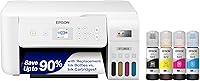
Frequent printing makes refillable tanks worth a closer look. Epson says the EcoTank ET-2803 can print up to 4,500 black pages and 7,500 color pages per replacement ink set.
For occasional use, compare cartridge inkjets by the tasks they handle and the features you will use. The Canon PIXMA TS6520 prints, scans and copies, and it supports automatic two-sided printing.
Consider how your print habits could change. A household with a new student, a hybrid worker or a new need to scan forms may outgrow a basic printer, while a large-capacity model can be unnecessary if most months bring only a handful of pages.
The goal is to buy for a realistic routine rather than a one-time rush. If you are setting up a dedicated work area, our home office printer guide focuses on paperwork and desk use.
Which printer features matter most for home use?
The most useful features are the ones that remove steps from jobs you do often. Print, scan and copy functions cover common household needs, while an ADF and automatic duplex printing can help with repeated paperwork.
A flatbed scanner works well for one page at a time, receipts and items that need to lie flat. An automatic document feeder can take several sheets for scanning or copying, which is useful when forms or work documents arrive in batches.
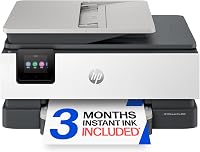
The HP OfficeJet Pro 8125 has an ADF, automatic two-sided printing and a 225-sheet input tray. Those features suit a home where reports and forms are routine, especially if fewer paper reloads would help.
The Brother Work Smart 1360 combines print, scan and copy functions with automatic duplex printing, a 20-sheet single-sided ADF and a 150-sheet tray. It also connects with cloud apps through its display.
You may not need every feature. If you scan one page now and then, a flatbed can be enough; if you copy multi-page documents often, an ADF deserves more weight in your decision.
Automatic duplex printing means the printer can print on both sides of a sheet without you turning each page by hand. It can reduce paper use for long documents, but it is less important if your typical job is a single page.
A larger input tray is convenient for frequent printing because it means fewer reloads. A smaller tray can be perfectly adequate when print jobs are short and the printer is used occasionally.
Should you get an all-in-one printer for home?
An all-in-one is a good fit when you need to print, scan and copy without keeping separate devices. All four printers here combine those functions, but their paper handling and ink systems differ.
Before buying, list the jobs you expect the scanner to handle. A flatbed works for single pages and small items, while an ADF helps with stacks of paper; it is valuable when you repeat that task, not just because it appears on a feature list.
An all-in-one also needs a practical home. Leave room to open the scanner lid and reach the paper tray.
Make sure you can access the ink or cartridge area, and measure the desk or shelf to allow space for loading paper and handling pages.
If your only need is printing a few pages a month, decide whether scanning and copying justify the extra functions and footprint. For many households, those features are useful for forms, school assignments and occasional copies, but a printer should not crowd a shared workspace for jobs you rarely do.
For more detail on the basic functions, read what an all-in-one printer does. If you scan multi-page documents, our guide to what an ADF does explains when a feeder helps.
Do you need a wireless printer for home use?
A wireless printer helps when you want to print from several devices or rooms. Check which mobile apps and services each model supports, because Wi-Fi alone does not guarantee support for every phone or computer.
The Epson EcoTank ET-2803 supports AirPrint, voice-activated printing and the Epson Smart Panel app. The Canon PIXMA TS6520 supports the Canon PRINT App, Apple AirPrint and Mopria Print Service.
The HP OfficeJet Pro 8125 supports wireless printing and the HP app for printing, scanning, copying or faxing from a smartphone. The Brother Work Smart 1360 supports a wireless network connection and Brother Mobile Connect.
For a focused comparison, see our guide to wireless printers for home use. If you print from Apple devices, read how AirPrint works and our printer guide for Mac users.
Before setup, decide which devices need access and whether the printer will stay in one place. A stable spot within reach of your home Wi-Fi can simplify first-time setup and later printing.
How should you compare ink costs for a home printer?
Compare the ink system and your expected page volume, not just the feature list. Refillable tanks use bottle refills, while cartridge inkjets use replacement cartridges; the better fit depends on how much you print and how you want to manage supplies.
Epson says the ET-2803 includes up to 2 years of ink based on roughly 125 pages per month. That estimate depends on print volume and the pages you make, so use it as a reference point rather than a promise about your own household.
HP describes a 3-month Instant Ink trial with the OfficeJet Pro 8125, after which a monthly fee applies unless you cancel. Read the service terms and check whether a subscription matches your print pattern before enrolling.
For more help with ongoing ink use, see our guide to printers with cheap ink. It compares options for buyers who want to keep supply costs in view.
Ink costs are easier to judge when you know your routine. A home that prints often may value a tank system's larger supply, while a low-volume household may prefer the simpler replacement cadence of cartridges.
Also consider the type of pages you print. A mix of black documents and color graphics can use supplies differently from mostly text, so avoid making a choice from a single maximum-yield figure alone.
Which home printer is easiest to set up?
A printer is easier to set up when you choose its location and connection before you begin. Keep the printer near a power outlet, within reach of your Wi-Fi signal if you plan to print wirelessly, and with enough clearance to load paper and open its scanner.
Unpack it on a stable surface and follow the included setup steps for the ink system. Ink tanks and cartridges use different supplies, so make sure you understand the refill or replacement process before starting a print job.
For wireless setup, connect the printer and the device you want to print from to the intended network, then install or open the supported brand app if needed. Models that support AirPrint or Mopria may also offer direct mobile printing through those services.
Run the printer's setup process before a time-sensitive task. Confirm that it can print a basic page, scan a page if you need that function, and reconnect after your phone or computer changes networks.
Avoid placing a printer where it is difficult to reach. If paper feeds from the rear or access panels open into a wall, routine loading and clearing small paper issues will be harder.
How do you keep a home inkjet ready to print?
Use the printer regularly enough to match your household's real needs and follow its on-screen care prompts. Inkjet owners can also keep paper dry, avoid overfilling trays and store replacement ink as directed by the manufacturer.
Long idle stretches can make an inkjet less convenient when you suddenly need it. If your household prints rarely, choose a model and maintenance routine you are comfortable with, and allow time for the printer to prepare before a deadline.
Use paper intended for the job. Ordinary documents call for plain paper, while photos or presentation pages may need a suitable specialty paper; check the printer's supported media before buying a large pack.
When a page comes out blank or faded, check ink levels, paper loading and the printer's maintenance guidance before repeating a large job. Our guide to why a printer prints blank pages covers common causes.
For tank models, fill only the correct reservoirs with the compatible ink and follow the refill steps. For cartridge models, keep the intended replacement type on hand if a job cannot wait for a supply run.
What mistakes should you avoid when choosing a home printer?
The most common mistake is choosing by one headline feature instead of your everyday routine. A fast printer, large tray or high page-yield figure does not help much if it lacks the scanner, connection or paper handling you need.
Avoid these buying missteps:
- Buying a tank printer for very light use: its refill system is most compelling when you print regularly.
- Skipping an ADF for recurring paperwork: a flatbed requires you to place pages one at a time.
- Paying attention to speed alone: speed matters more for larger jobs than for a page here and there.
- Assuming every wireless printer supports your device: check the listed apps and services before choosing.
- Ignoring space and access: measure the location and leave room to load paper and open the scanner.
- Forgetting ongoing supplies: check which ink bottles or cartridges the model uses and how you want to replenish them.
Do not overbuy features you will rarely use. A printer with a practical ink system, the right connection and enough paper handling for your typical jobs is a stronger fit than one chosen for a spec you may never notice.
Which home printer should you choose?
Choose the Epson EcoTank ET-2803 for frequent printing, the Canon PIXMA TS6520 for occasional color tasks, and an ADF model for regular paperwork. Then compare the HP OfficeJet Pro 8125 and Brother Work Smart 1360 by their tray capacity, feeder and app features.
The ET-2803 is the clear fit if your household prints often and wants refillable tanks. Skip it if you print only rarely and would rather use replaceable cartridges.
The TS6520 suits a shared home workspace where compact dimensions, mobile printing and automatic two-sided output matter. Skip it if a multi-page feeder or a larger paper tray is central to your routine.
Choose the HP OfficeJet Pro 8125 when recurring paperwork makes its ADF and 225-sheet tray useful. Choose the Brother Work Smart 1360 if cloud app connections and its 20-sheet feeder better match the way you handle documents.
If most of your pages are work reports and forms, continue with our home office printer guide. For broader inkjet comparisons, see the best inkjet printers for home use.
Frequently asked questions
Is an ink tank printer better for home use?
An ink tank printer can suit a home that prints often because it uses refillable tanks instead of cartridges. Estimate your monthly pages and consider whether you are comfortable refilling ink.
If you print only now and then, a cartridge inkjet may be a simpler fit.
Is an inkjet printer good for home use?
Yes. Inkjet printers can handle common home tasks such as documents, schoolwork, scanning and color printing.
Cartridge models may suit occasional use, while ink tank models are worth comparing if you print regularly and want fewer cartridge changes.
Choose based on the pages and features you need.
What should I look for in a home printer?
Start with your monthly print habits, then decide whether you need color, scanning, copying, automatic two-sided printing or an automatic document feeder. Check wireless and mobile printing support if you print from phones or tablets.
Also measure your space and compare the ink system with your expected volume.
Do home printers need Wi-Fi?
Wi-Fi helps when several devices or people need to print from different rooms. Some printers also support mobile printing through a brand app or services such as AirPrint.
If you usually print from one computer near the printer, a direct connection may be enough.
Are ink tank printers the same as laser printers?
No. The ink tank models in this guide are inkjet printers that hold liquid ink in refillable tanks.
Laser printers use toner instead.
This guide compares ink tank and cartridge inkjet choices, so compare a laser separately if you want to consider toner.