Why Is My Printer Printing Blank Pages?
If your printer is printing blank pages, check the ink supply, printhead, document settings, and connection in that order. A test page can help you tell whether the issue is with the printer or the file.
On this page (9 sections)
- Why is my printer printing blank pages?
- What should you check first?
- Could a clogged printhead be the cause?
- Why does the printer test page work but my document is blank?
- What if the pages are blank after installing new ink?
- Can ink level or cartridge problems leave pages blank?
- Which printer features can help prevent ink interruptions?
- When should you contact printer support?
- What should you do if your printer keeps printing blank pages?
If your printer is printing blank pages, check the ink supply, printhead, print settings, and connection in that order. Print a test page from the printer itself to see whether the cause is in the printer or in the file you're sending.
Start with simple checks before replacing ink or hardware. A low tank, protective seal, clogged nozzle, empty document page, or wrong printer selection can all result in blank paper.
Why is my printer printing blank pages?
A blank page usually means ink isn't reaching the paper, or the print job has no visible content. A printer test page helps separate printer problems from computer, app, or document problems.
If the printer's own test page is blank, check ink and the printhead first. If the test page looks normal, try printing another document and review its settings.
Follow the printer's on-screen instructions or manual for model-specific steps. Names such as “nozzle check,” “print quality report,” and “test page” vary by brand.
What should you check first?
Check ink levels, printer alerts, and any new cartridge or bottle setup. These quick checks can uncover an empty supply or a setup step that prevents ink from flowing.
- Confirm that the printer is turned on and shows no paper, cover, or ink warning.
- Check ink levels through the printer menu or its software.
- If you just installed ink, confirm it is the correct type and seated or filled as the manual instructs.
- Remove any protective tape or seal from a new cartridge, if the manual says to.
- Confirm the paper is loaded correctly and the printer is selected for the job.
Don't refill a tank above its marked line or force a cartridge into place. If a new ink supply still produces blank pages, check the manufacturer's setup steps before trying a cleaning routine.
For help comparing ink types, see dye vs pigment ink. If you are weighing refillable tanks against cartridges, our guide to printers with cheap ink explains the main tradeoffs.
Could a clogged printhead be the cause?
Yes, clogged nozzles can cause blank pages or missing colors. This can happen when ink dries in the printhead after the printer sits unused.
Print a nozzle check or quality report using the printer's own controls. If lines or colors are missing, run the built-in printhead cleaning once, then check the pattern again.
Cleaning uses ink, so avoid running it repeatedly without checking the result. Follow the manual for how long to wait between cleanings and when to stop and contact support.
When should you clean the printhead?
Clean the printhead when the printer's test pattern shows missing lines or colors. If the pattern is complete but one file prints blank, cleaning is unlikely to address the cause.
Use only the cleaning function approved for your model. Avoid touching the printhead or ink nozzles unless the manual specifically directs you to do so.
If ink may be old, see whether printer ink expires. The answer depends on the ink and printer, so follow the manufacturer's guidance for your model.
Why does the printer test page work but my document is blank?
If the printer's test page works, check the document and print settings next. The printer is able to make a print, so the blank output may come from the app, file, or selected options.
Open print preview and confirm that text or images appear on the pages you expect. Look for white text on a white background, blank pages in the file, or a selected range that contains no content.
Check that the right printer is selected and that options such as “print blank pages” or “skip blank pages” aren't changing the output. If the issue affects only one app, try printing the same document from another app or saving it as a PDF first.
Could a driver or connection issue cause blank pages?
A driver or connection problem can interfere with a print job, though it more often causes an error or incomplete output. Restart the printer and computer, then send a short test document again.
For a wireless printer, check that your device and printer are on the network the printer expects. For USB, reconnect the cable directly to the computer and check for a connection warning.
If the printer test page works and other files do not, check the app and driver before buying ink. For everyday wireless printing needs, compare options in our wireless printers for home use guide.
What if the pages are blank after installing new ink?
Check that the new ink is the correct type and installed according to the printer's manual. Protective tape, a loose cartridge, or an incomplete tank setup can stop ink from reaching the paper.
Don't remove seals unless the instructions say to remove them, and don't remove a seal the manual says to leave in place. Confirm the cartridge clicks into place or that a refillable tank is filled to the required level.
Some printers need an initial ink charging or setup process after installation. Follow the display prompts and wait for the process to finish before printing.
For refillable-tank printers, make sure the ink bottles match the model. The HP Smart Tank ink guide covers genuine HP 31 and 32XL bottles for compatible Smart Tank models.
Can ink level or cartridge problems leave pages blank?
Yes. A cartridge may be empty, unrecognized, incorrectly seated, or unable to supply ink even if the printer recently showed a level.
Check the printer's alerts and the ink status again before replacing anything.
If only one color is missing, inspect the relevant supply and print a color test pattern. A black-only document can also look blank if black ink is unavailable and the printer isn't set to use another color.
Don't assume that a printer's estimated ink level proves ink is flowing. A nozzle check is a more useful next step when the printer reports ink but prints nothing.
Which printer features can help prevent ink interruptions?
Refillable tank printers use bottles instead of traditional cartridges, which can suit households that print often. They still need the right ink, setup, and maintenance, and no ink system prevents every blank-page problem.
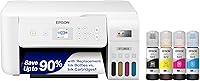
The Epson EcoTank ET-2803 has refillable tanks, a flatbed scanner, and copy functions. Epson says each replacement ink set yields up to 4,500 black pages and 7,500 color pages.
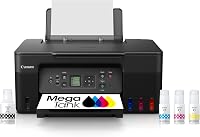
The Canon MegaTank G3290 prints, copies, and scans wirelessly, and has automatic two-sided printing. Canon states a yield of up to 6,000 black and 7,700 color pages per ink set.
The HP Smart Tank 5003 prints, copies, and scans, with mobile and wireless printing. HP says it includes up to 3 years of ink and provides up to 6,000 color or black pages.
Choose a tank printer if your regular print volume makes refillable bottles a practical fit. For occasional printing, compare the ongoing care and setup needs with a cartridge printer before deciding.
When should you contact printer support?
Contact the manufacturer if its recommended checks don't restore printing or the printer shows a persistent error. Have the model name, error message, and the result of the printer's test page ready.
Stop if cleaning prompts produce no improvement or the printer asks you to service a part you can't safely access. Don't disassemble the printer or use household solvents on ink components.
If the printer is under warranty, check the manufacturer's support process before paying for service. For older printers, compare repair needs with the cost and setup of a replacement.
What should you do if your printer keeps printing blank pages?
For a printer printing blank pages, use its own test page to choose your next step. A blank test page points toward ink, printhead, or setup checks; a good test page points toward the file, app, driver, or connection.
Clean the printhead only when the nozzle check shows gaps, and follow the model's instructions. If repeated checks still produce blank output, contact the manufacturer or compare replacement options in our guide to why printer ink costs so much.
Frequently asked questions
Why is my printer printing blank pages when the ink is full?
Full cartridges or tanks don't rule out a clogged printhead, an installation issue, or a setting that suppresses ink. Print a nozzle check or printer test page from the printer's own menu.
If that page is blank, follow the manufacturer's cleaning and setup steps; if it prints, check the file and print settings.
Can a clogged printhead cause blank pages?
Yes. Dried ink or blocked nozzles can keep ink from reaching the paper, especially after a printer sits unused.
Run the printer's nozzle check, then use its built-in cleaning routine if the pattern shows gaps.
Follow the manual, since repeated cleaning uses ink and may not clear a severe blockage.
Why does my printer print blank pages from my computer but not its test page?
If the printer's own test page prints correctly, the printer can likely put ink on paper, so check the document, app, driver, and print settings. Try a different file, confirm the selected printer, and look for blank pages or white text in the document before reinstalling or updating the driver.
Should I replace my printer if it prints blank pages?
Not right away. Check ink levels, remove any shipping seals from new cartridges, run the printer's built-in test, and follow its printhead cleaning steps.
If the issue continues after the manufacturer's troubleshooting, compare repair cost and age with replacement options, especially if other parts or functions have also failed.