9 Best Printers for Mac Users (October 2026)
The best printers for Mac users include the Epson EcoTank ET-2800 for regular home printing, the HP OfficeJet Pro 9135 for busy home offices, and the Canon PIXMA G6020 MegaTank for duplex tank printing.
On this page (6 sections)
The best printer for Mac users is the Epson EcoTank ET-2800 for regular home printing, with refillable tanks and wireless print, scan and copy functions. For photos, consider the Epson XP-7100; for office documents, the HP OfficeJet Pro 9135 has fast stated speeds and two-sided scanning.
A printer can connect to a Mac by Wi-Fi, Ethernet or USB, but the connection alone doesn't confirm software support for your macOS version. Check the manufacturer's current compatibility information before buying, especially if you rely on scanning or fax features.
If you mainly print at home, our home printer guide compares tank and cartridge models. For office workloads, see our home office printer picks and wireless printer guide.
Our picks at a glance
-
1
-
2

-
3
How we chose printers for Mac users
We compared features relevant to common Mac jobs: wireless connections, all-in-one functions, paper handling, photo support and ink format. The score reflects how well each model's documented features fit the needs behind this search.
Mac compatibility can vary by operating system version, so model support matters alongside the connection type. Apple's AirPrint guide explains how to print from Apple devices, and printer makers provide current software and compatibility details.
| Product | Best for | Functions | Ink system | Connectivity | Our score |
|---|---|---|---|---|---|
| Epson EcoTank ET-2800 | regular home printing | Print, scan and copy | Refillable ink tanks | Wi-Fi and USB | 8.4 |
| HP OfficeJet Pro 9135 | busy home offices | Print, scan, copy and fax | 8.1 | ||
| Canon PIXMA G6020 MegaTank | duplex tank printing | Print, copy and scan | Wireless, Ethernet and USB | 8.0 | |
| Epson Expression Premium XP-7100 | borderless photo prints | Print, copy and scan | Wi-Fi, Ethernet, Wi-Fi Direct and USB | 7.7 | |
| Epson WorkForce Pro WF-4830 | two-sided office jobs | Print, copy, scan and fax | 7.7 | ||
| Canon PIXMA TS7720 | compact home desks | Print, copy and scan | Wireless and USB | 7.7 | |
| HP Envy Inspire 7955e | family photo projects | Print, scan and copy | 7.6 | ||
| Brother INKvestment 4555 | small office paper loads | Print, copy, scan and fax | 7.3 | ||
| Brother INKvestment 6560 | ledger-size layouts | Print, copy, scan and fax | 7.2 |
The best printers for Mac users
The right pick depends on whether your Mac is mainly for everyday pages, photos or office documents. These 9 models cover those different needs, with the highest-scoring choices first.
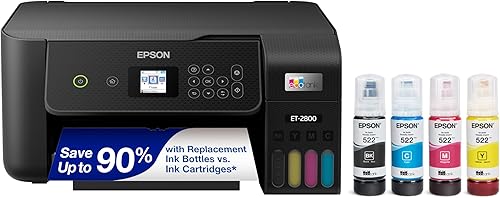
Epson EcoTank ET-2800: Best for regular home printing
- Refillable ink tanks
- Wireless printing
- Print, scan and copy
- Up to 4,500 black and 7,500 color pages per ink bottle set
A cartridge-free tank system and wireless printing suit regular home printing. It combines print, scan and copy functions in one machine.
Pros
- Refillable ink tanks
- Up to 2 years of ink included
- Wireless all-in-one
Cons
- Simplex printing
- Best suited to basic home and office needs
The Epson EcoTank ET-2800 is a strong fit for a Mac household that prints regularly and wants refillable ink tanks. It combines wireless printing with scanning and copying for basic home and office tasks.
Epson states that one bottle set can print up to 4,500 black pages and 7,500 color pages, and up to 2 years of ink comes in the box. Actual yield varies with what you print and how often.
The printer has a flatbed scanner and a USB connection as well as Wi-Fi. It prints on one side at a time, so skip it if you need automatic duplex printing or an automatic document feeder.
Check Epson's support information for your macOS version before you buy. Choose this model when lower cartridge replacement frequency matters more than office paper handling.
HP OfficeJet Pro 9135: Best for busy home offices
- Print speeds up to 25 ppm black and 20 ppm color
- Automatic two-sided printing
- Single-pass two-sided scanning
- Two 250-sheet input trays
Fast print speeds, two input trays and automatic two-sided scanning suit office workloads. It supports wireless printing and the HP app.
Pros
- Fast stated print speeds
- Automatic two-sided printing and scanning
- 4.3 in color touchscreen
Cons
- Uses HP cartridges
- Instant Ink trial becomes a paid subscription unless cancelled
The HP OfficeJet Pro 9135 fits a Mac home office that handles frequent paperwork, scanning and faxing. Its stated speeds reach 25 pages per minute in black and 20 in color, and it has two 250-sheet input trays.
Automatic two-sided printing and single-pass two-sided scanning can reduce manual steps for multi-page documents. It also has an ADF, copy and fax functions.
Connection options include dual-band Wi-Fi, Ethernet and USB. The HP app supports printing, scanning, copying and faxing from a smartphone, while Mac compatibility depends on HP's support for your operating system.
The included Instant Ink trial becomes a monthly paid plan after 3 months unless cancelled. The printer requires cartridges with original HP chips or circuitry, so skip it if you want to use other cartridges.
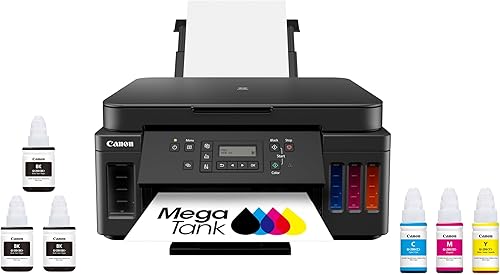
Canon PIXMA G6020 MegaTank: Best for duplex tank printing
- Refillable MegaTank ink system
- Up to 6,000 black and 7,700 color pages per ink set
- Wireless print, copy and scan
- Automatic two-sided printing
The high-yield ink tank system suits homes that print often. Wireless, Ethernet and USB connections give you several setup options.
Pros
- High stated page yield
- Automatic two-sided printing
- Wireless, Ethernet and USB
Cons
- Small 2-line LCD display
- Check Mac software support for your macOS version
The Canon PIXMA G6020 MegaTank suits Mac users who print enough color pages to benefit from refillable ink bottles. Canon states a yield of up to 6,000 black and 7,700 color pages per ink set, with up to 2 years of ink included based on average monthly printing of 200 pages.
It can print, copy and scan, and supports wireless, Ethernet and USB connections. Automatic two-sided printing is useful for routine documents, while the small two-line display keeps printer-side controls basic.
Choose the G6020 when you want a tank-based all-in-one and wired network options. Unlike the ET-2800, it supports automatic duplex printing; skip it if you need a larger, more informative touchscreen.
Epson Expression Premium XP-7100: Best for borderless photo prints

- Prints borderless photos up to 8 x 10 in
- 30-page auto document feeder
- Automatic two-sided printing
- USB and SD card slots
A 5-color ink system and borderless photo support suit Mac users who print photos and creative projects. It also has a document feeder for multi-page tasks.
Pros
- Borderless photos up to 8 x 10 in
- 30-page ADF
- 4.3 in touchscreen with USB and SD card slots
Cons
- Uses individual ink cartridges
- Specialty paper uses the rear feed
The Epson Expression Premium XP-7100 suits Mac users who print both photos and documents. Its five-color cartridge system supports borderless photos up to 8 x 10 in, and it can print photos directly from a USB drive or SD card.
A 30-page ADF helps with multi-page documents, and the printer supports automatic two-sided printing, copying and scanning. Its 4.3-inch touchscreen lets you view and print photos from a USB drive or SD card.
It offers Wi-Fi, Ethernet, Wi-Fi Direct and USB. Epson includes Windows and Mac software in the box, but check current support for your macOS version before buying.
Choose it for photo flexibility and a mix of document work. Skip it if refillable ink tanks are your priority, and remember that specialty paper feeds through the rear path.
Epson WorkForce Pro WF-4830: Best for two-sided office jobs

- Prints up to 25 ppm black and 12 ppm color
- Automatic two-sided print, copy, scan and fax
- 50-sheet ADF
- 500-sheet paper capacity
Automatic duplex functions and a 50-sheet feeder help with multi-page office jobs. Ethernet, USB and Wi-Fi provide connection options.
Pros
- Automatic two-sided print, copy, scan and fax
- 50-sheet ADF
- 500-sheet capacity
Cons
- Uses Epson cartridges
- Larger footprint than basic home models
The Epson WorkForce Pro WF-4830 suits a Mac office that needs a document feeder, faxing and automatic two-sided handling. Its stated speeds are up to 25 pages per minute in black and 12 in color.
It can print, copy, scan and fax, with automatic two-sided handling for these functions. The 50-sheet ADF and 500-sheet paper capacity help with longer batches and shared office work.
Connection choices include Wi-Fi, Ethernet and USB. Epson specifies genuine Epson cartridges for this printer, so factor cartridge replacement into your budget and skip it if refillable bottles are a better fit.
Choose the WF-4830 when document workflow features matter more than tank ink. Check Epson's support for your macOS version and the scanning software you use.
Canon PIXMA TS7720: Best for compact home desks

- Print, copy and scan
- Automatic two-sided printing
- Prints about 15 ppm black and 10 ppm color
- 2.7 in touchscreen
This compact all-in-one handles common home documents and photos. Its two-cartridge system and touchscreen keep the controls straightforward.
Pros
- Automatic two-sided printing
- Prints on photo paper and envelopes
- Compact 13.8 x 14.8 x 6.7 in dimensions
Cons
- Two-cartridge ink system
- No ADF
The Canon PIXMA TS7720 is a compact option for a Mac desk that handles everyday pages and occasional photos. It prints about 15 pages per minute in black and 10 in color, with automatic duplex printing.
The all-in-one functions cover printing, copying and scanning. Canon describes a streamlined setup process, and its 2.7-inch touchscreen provides printer-side controls.
The TS7720 uses two replaceable ink cartridges and supports wireless and USB connections. It can print on photo paper and envelopes, and measures 13.8 x 14.8 x 6.7 in.
Choose it when compact size and straightforward home jobs matter more than a document feeder or high-yield tank system. Skip it if you regularly scan stacks of pages, since it has no ADF.
HP Envy Inspire 7955e: Best for family photo projects
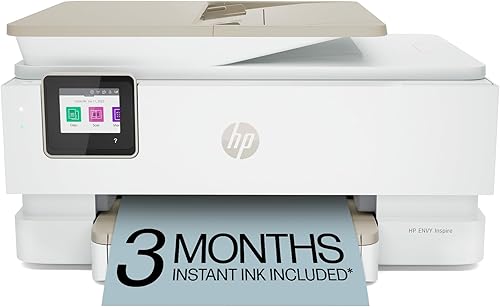
- Print, scan and copy
- Automatic two-sided printing
- Separate photo tray and ADF
- Prints borderless photos in multiple sizes
A separate photo tray, ADF and borderless photo support fit mixed family printing. Wireless setup and HP app printing add mobile options.
Pros
- Separate photo tray
- Automatic two-sided printing
- ADF for multi-page documents
Cons
- Uses HP cartridges
- Instant Ink trial becomes a paid subscription unless cancelled
The HP Envy Inspire 7955e suits families who use a Mac for homework, documents and photo projects. HP lists print speeds up to 15 pages per minute in black and 10 in color, along with automatic duplex printing.
A separate photo tray and ADF help it handle different kinds of jobs. HP describes borderless photo printing in multiple sizes, including square and panoramic formats.
The printer supports wireless printing and the HP app. HP says the Instant Ink trial lasts 3 months, after which a monthly fee applies unless cancelled; the printer requires cartridges with HP chips or circuitry.
Choose it when the family often switches between photo paper and everyday documents. Skip it if you don't want a cartridge subscription option or if refillable ink is your main priority, and confirm HP supports the features you need on your Mac.
Brother INKvestment 4555: Best for small office paper loads

- Print, copy, scan and fax
- Automatic two-sided printing
- Two trays with 400-sheet total capacity
- 20-page ADF
Two trays and a 20-page feeder help keep small office jobs moving. It supports Wi-Fi, Ethernet, USB and Wi-Fi Direct.
Pros
- 400-sheet capacity across two trays
- Wi-Fi Direct and front USB port
- Prints up to 20 ppm black and 19 ppm color
Cons
- ADF handles single-sided scanning
- Brother recommends genuine LC506 ink
The Brother INKvestment 4555 fits a small Mac office that needs multiple paper trays and regular document handling. It prints, copies, scans and faxes, with stated speeds up to 20 pages per minute in black and 19 in color.
Its two trays hold up to 400 sheets in total, and the 20-page ADF handles single-sided scans. Automatic duplex printing and Wi-Fi Direct add options for a shared workspace.
Connections include Wi-Fi, Ethernet and USB, with a front USB port for direct printing or scanning. Brother recommends genuine LC506 ink for this model.
Pick it when paper capacity and connections matter more than two-sided scanning. Skip it if your workflow relies on scanning both sides of documents in one pass, and check Brother's software support for your macOS version before buying.
Brother INKvestment 6560: Best for ledger-size layouts

- Prints on media up to 11 x 17 in
- Print, copy, scan and fax
- Automatic two-sided printing
- 50-page ADF
Ledger-size support sets this model apart for larger work documents and layouts. It also offers automatic duplex printing and wireless, Ethernet and USB connections.
Pros
- Prints on paper up to 11 x 17 in
- Up to 31 ppm black and 30 ppm color
- 50-page ADF
Cons
- Larger 22.7 x 18.8 in footprint
- Brother recommends genuine LC506 ink
The Brother INKvestment 6560 is suited to Mac users who need paper larger than letter size. It supports media up to 11 x 17 in, useful for ledger pages and larger office documents.
It prints, copies, scans and faxes, with automatic two-sided printing and a 50-page ADF. Brother states speeds up to 31 pages per minute in black and 30 in color, and the 250-sheet tray serves routine jobs.
Wireless, Ethernet and USB connections give you several ways to set it up. Brother recommends genuine LC506 ink, and the printer measures 22.7 in wide by 18.8 in deep.
Choose the 6560 when ledger-size output is a regular need. For standard letter-size work, the smaller INKvestment 4555 is easier to fit into a home office.
How do you choose a Mac printer for your main jobs?
Choose by the pages you print most often: tank models suit regular volume, cartridge models offer photo and office features, and larger machines help with multi-page workloads. Then verify Mac compatibility for your operating system and the functions you need.
Is a tank printer the best printer for Mac printing?
A tank printer can make sense when your household prints regularly and wants refillable bottles. The Epson ET-2800 and Canon G6020 are the tank options here, with wireless printing and all-in-one functions.
For a closer comparison of printer types, read our guide to ink tank and cartridge printers. Think about your print volume and whether you need duplex printing, since the ET-2800 prints single-sided while the G6020 prints automatically on both sides.
Which Mac printer suits photos?
The Epson XP-7100 is a photo-focused choice, with borderless printing up to 8 x 10 in and direct printing from USB or SD card. The HP Envy Inspire 7955e also supports borderless photos in multiple sizes and has a separate photo tray.
Photo paper size and feed path matter when choosing a printer. Check that the paper you plan to use fits the printer's supported sizes and feed options before sending a job from macOS.
Which features matter for a Mac home office?
An ADF helps scan or copy multiple pages, while automatic duplex printing reduces manual page flipping. The HP OfficeJet Pro 9135 and Epson WF-4830 add office-focused paper handling, and the Brother 6560 supports paper up to 11 x 17 in.
If you print from several devices, wireless support can simplify printer placement. Our wireless printer guide covers the tradeoffs between Wi-Fi convenience and wired connections.
Does AirPrint matter when choosing a printer?
AirPrint can make printing from Apple devices simpler when both the printer and your Mac support it. Wi-Fi alone doesn't confirm AirPrint support, so confirm the feature for the exact model.
Our explainer on what AirPrint is and which printers support it covers the basics. Also check the manufacturer's current Mac software support if you need scanning utilities or other printer features.
How should you set up and care for a Mac printer?
Place the printer near a reliable Wi-Fi signal or a convenient Ethernet connection, then follow the model's setup steps before adding it to your Mac. Keep paper and ink supplies suited to the jobs you print, and use the manufacturer's instructions for routine care.
For wireless setup, connect the printer to the same home network your Mac uses, then add the printer through macOS settings or the maker's app if needed. If the printer doesn't appear, confirm it has joined the intended network and restart the printer and Mac before trying again.
A USB or Ethernet connection can be useful when Wi-Fi is unreliable or the printer stays near one computer or router. Confirm the model supports the cable and Mac software you need, since a port by itself doesn't guarantee scanning or other functions will work.
Load the correct paper size and type before printing, especially for photos, envelopes or specialty stock. On the XP-7100, specialty paper uses the rear feed; on the TS7720, photo paper and envelopes are supported, so match the job settings to the loaded media.
For tank printers, follow the model's filling instructions and use the recommended ink. Epson strongly recommends genuine ink for the ET-2800, while Canon's G6020 uses GI-20 bottles; avoid mixing supplies or improvising a refill method.
What mistakes should Mac buyers avoid?
The most common mistake is treating a wireless connection as proof of full Mac compatibility. Confirm support for your macOS version and check that the maker provides the print, scan or fax functions you plan to use.
Also think beyond the purchase-day setup. Cartridge printers can suit occasional or photo-focused use, while tank models make more sense when you print regularly and want refillable bottles; the ink system affects ongoing upkeep.
Don't overlook paper handling. An ADF is useful for multi-page scanning, automatic duplex saves manual page flipping, and an 11 x 17 in model takes more space than a compact home printer.
Finally, check subscription terms before activating a trial. The HP OfficeJet models here include 3-month Instant Ink trials that become paid monthly plans unless cancelled.
Which printer should Mac users choose?
Choose the Epson EcoTank ET-2800 for regular home printing with refillable tanks, the XP-7100 for borderless photo work, or the HP OfficeJet Pro 9135 for a busy office with two-sided scanning. Pick the Brother 6560 when your Mac work needs 11 x 17 in paper.
Before ordering, confirm support for your Mac and macOS version, then match the ink system and paper handling to your weekly workload. If everyday home use is your main concern, start with our home printer guide.
Our top 3 picks at a glance
-
1
-
2
-
3
Frequently asked questions
What should Mac users check before choosing a printer?
Check that the printer supports your Mac and macOS version, then confirm the connection you plan to use. AirPrint can simplify printing from Apple devices when both the printer and your Mac support it.
For wireless basics, see our guide to AirPrint and compatible printers.
Do these printers work with Mac computers?
Mac compatibility varies by operating system and model. Check the manufacturer's current compatibility information before buying, especially if you need scanning or fax software.
A USB, Ethernet or Wi-Fi connection alone does not confirm Mac software support.
Is a tank printer a good choice for Mac users?
A tank printer can suit a Mac household that prints regularly and wants refillable ink bottles. The Epson ET-2800 and Canon G6020 both use refillable tanks and offer wireless printing.
Compare them in our guide to tank and cartridge printers.
Can I print photos from a Mac?
Yes. The Epson XP-7100 supports borderless photos up to 8 x 10 in, while the HP Envy Inspire 7955e offers borderless photo printing in multiple sizes.
Check your photo paper size and the printer's setup options before sending a job from your Mac.