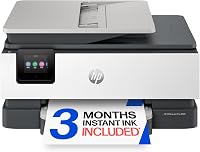
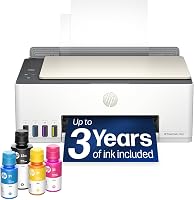
How to Transport an HP Smart Tank Printer
To transport an HP Smart Tank printer, remove the paper, secure the printhead and ink system, keep the printer level, and pack it tightly. Handle it as an ink-filled device, not like an empty laser printer.
On this page (9 sections)
- What should you do before moving an HP Smart Tank printer?
- Should you remove the ink before transporting it?
- How do you secure the printhead and moving parts?
- How should you pack an HP Smart Tank printer?
- Which HP Smart Tank models are practical to move?
- How do you carry the printer without spilling ink?
- What should you do after the printer arrives?
- Can you move the printer with ink bottles and paper?
- What is the safest way to transport an HP Smart Tank printer?
To transport an HP Smart Tank printer, remove paper, secure loose parts, keep the printer upright and level, and use padding around the cabinet. The ink stays in the printer unless HP's instructions for your exact model call for another procedure.
Smart Tank models use refillable ink tanks, so movement needs more care than moving an empty office device. A careful pack protects the ink area, printhead parts, paper trays, scanner glass, and wireless setup from avoidable damage.
What should you do before moving an HP Smart Tank printer?
Finish or cancel active print jobs, then shut the printer down normally before unplugging it. Let the printer complete its power-down routine so the printhead can return to its parked position.
Remove paper from the input and output areas. Paper can bend inside a tray or catch on a flap while the printer is lifted.
Disconnect the power cord and any USB cable. Coil each cable separately and place it beside the printer rather than on top of the scanner glass.
Close the scanner lid, paper guides, output tray, and other movable panels. Do not tape directly across buttons, vents, ink windows, or the scanner lid.
Take a quick photo of the cable connections and the printer's position before packing it. That makes reconnection easier if you are moving between rooms, offices, or homes.
If you are still choosing a model, our guide to the best HP printer for home use explains how common HP features fit different household printing needs.
Should you remove the ink before transporting it?
Do not drain the ink simply because the printer is being moved. A Smart Tank printer is designed around its refillable ink system, and unnecessary draining can add mess and make the restart process harder.
Keep the ink tanks and caps in their normal closed positions. Check that the tank covers are shut and that no bottle, funnel, or refill accessory is connected.
Hold the printer level while preparing it. Tilting the cabinet can move liquid toward areas that are meant to stay dry, especially if the printer is carried on its side.
If ink has recently been added, give the refill area time to close and wipe away any visible drops before packing. Use a clean, lint-free cloth around the exterior only.
When should you ask about draining the ink?
A long-distance shipment, air shipment, freezing weather, or a repair process can have different requirements from a short car trip. In those cases, use the instructions for your exact HP Smart Tank model and the carrier's packing rules.
The goal is not to create a universal draining routine. The goal is to avoid opening the ink path unless the correct procedure requires it.
For a broader explanation of the printer type, see what is an HP Smart Tank printer. Understanding the tank system helps explain why upright handling matters.
How do you secure the printhead and moving parts?
Secure the parts that can shift, then protect the printhead area without forcing anything into the carriage path. Use the printer's original transport materials if you saved them.
Do not push the printhead or carriage by hand. Do not insert cardboard, foam, tissue, or tape into the inside of the printer unless HP supplies that material for transport.
Place the ink tank cover, scanner lid, and paper trays in their closed positions. If a tray folds inward, fold it gently rather than bending it against the cabinet.
Use painter's tape on the outside of a closed tray only when needed, and remove it slowly after arrival. Avoid strong adhesive on painted surfaces or labels.
Keep removable print accessories, spare ink bottles, manuals, and the power cord in a separate bag. Ink bottles should stay sealed and upright so they do not leak onto the printer.
How should you pack an HP Smart Tank printer?
Wrap the printer in a clean plastic bag first, then surround it with firm padding inside a box. The bag helps contain dust or a small leak, while the padding limits shocks during carrying.
The original HP box and molded inserts are the best fit when available. They hold the printer in the intended position and protect corners, trays, and the scanner section.
If you need another box, choose one that leaves room for padding on every side. The printer should not touch the cardboard directly, and it should not slide when the box is gently moved.
Place padding under the base and around the side walls. Add a separate top layer above the scanner lid, but do not compress the lid or press down on the ink tank windows.
Mark the box “This side up” and “Fragile,” but treat those labels as reminders rather than a guarantee. Carry the box upright and keep it away from heavy items.
Which HP Smart Tank models are practical to move?
The HP Smart Tank 5003, HP Smart Tank 5103, and HP Smart Tank 5100 are all all-in-one ink tank printers with print, copy, and scan functions. Their published weights are 11.1 pounds, so use both hands and support the base rather than lifting from a tray or lid.
HP Smart Tank 5003
The HP Smart Tank 5003 includes wireless and mobile printing, borderless printing, and print, copy, and scan functions. It comes with HP 32XL black ink and HP 31 cyan, magenta, and yellow ink bottles.
The printer measures 14.23 in deep, 17.11 in wide, and 6.19 in high. Use those dimensions to measure the box, shelf, car space, and doorway before carrying it.
Its maximum media size is legal, and manual duplex support means paper-handling parts need to stay closed during transport. Keep the output area clear so a tray does not catch on the packing material.
HP Smart Tank 5103
The HP Smart Tank 5103 is an all-in-one printer with copy and scan functions, wireless printing, mobile support, and a touch control method. It weighs 11.1 pounds and measures 17.11 in deep, 6.19 in wide, and 14.23 in high.
The published dimensions use a different orientation from the HP Smart Tank 5003 and HP Smart Tank 5100. Measure the actual printer and box in the direction you plan to carry them rather than assuming every model sits in the same position.
The HP Smart Tank 5103 includes HP 32XL black ink and HP 31 tri-color ink in the box. Keep any included paper and bottles in their own protected space instead of placing them on the scanner.
HP Smart Tank 5100
The HP Smart Tank 5100 supports print, copy, scan, borderless printing, mobile printing, and wireless printing. It weighs 11.1 pounds and measures 14.23 in deep, 17.11 in wide, and 6.19 in high.
The printer uses HP 31 and HP 32/32XL ink bottles. Keep the tank covers closed, place spare bottles upright, and prevent them from rolling into the printer during transport.
If you are comparing brands before buying, our HP vs Epson printer guide can help you weigh the two refillable-printer approaches.
How do you carry the printer without spilling ink?
Carry the printer from underneath with two hands, keeping the base level. One person should hold the front underside while the other supports the rear underside if the path is long or awkward.
Do not lift the printer by the scanner lid, paper tray, output tray, control panel, or ink tank cover. These parts are not carrying handles.
Walk slowly through doorways and turns. Keep the printer close to your body, but do not squeeze the sides or press against the ink windows.
For stairs, clear the route first and use a second person when the printer must be passed around a corner. Set it down on a flat surface whenever you need to open a door or adjust your grip.
Inside a car, place the boxed printer on a flat floor or cargo surface. Keep it upright, wedge the box so it cannot slide, and keep luggage away from the top and sides.
What should you do after the printer arrives?
Let the printer settle upright, unpack it carefully, and reconnect it on a stable level surface. Remove padding without pulling on trays, covers, or the scanner lid.
Open the ink tank area and check for visible leaks around the caps. If you see spilled ink inside the cabinet, stop and follow HP support guidance for the model instead of starting a print job.
Reconnect the power cord and USB cable if you use one. Turn the printer on and allow its normal startup process to finish before loading paper.
Load a small amount of paper and run the printer's normal alignment, cleaning, or print-quality procedure only when the printer requests it. Avoid starting repeated cleaning cycles simply because the printer has been moved.
Print a basic test page with black and color areas. If the page has a problem, note whether it affects black, color, paper feeding, or alignment before troubleshooting.
Can you move the printer with ink bottles and paper?
Move spare ink bottles separately from the printer and keep them upright in a sealed bag. This limits damage if a cap loosens and keeps a bottle from pressing against the cabinet.
Paper should travel flat in its own package or inside a protected compartment. A bent stack can cause feed problems when you set up the printer again.
Do not fill the printer with paper before transport. Empty trays are lighter, easier to secure, and less likely to catch on packing materials.
If you are moving because cartridge costs are the concern, compare HP Instant Ink vs Smart Tank before changing printer types. Smart Tank models use refillable bottles, while Instant Ink is a different supply approach.
What is the safest way to transport an HP Smart Tank printer?
The safest method for how to transport HP Smart Tank printer equipment is simple: shut it down normally, remove paper, close and secure its movable parts, keep the ink system assembled, wrap the printer, and carry it upright.
Choose the original box when possible. For a short move, a well-padded box on a flat car surface is enough protection when the printer stays level and cannot slide.
Pick the HP Smart Tank 5003 when its 14.23 in by 17.11 in footprint fits your space. Choose the HP Smart Tank 5103 when its touch control and different cabinet orientation suit your setup, or choose the HP Smart Tank 5100 for the same general 11.1-pound all-in-one size with wireless and borderless printing.
After arrival, inspect for leaks, reconnect the cables, let startup finish, and print one basic test page. That process protects the printer while giving you a clear decision rule for any next step.
Frequently asked questions
Can you transport an HP Smart Tank printer with ink inside?
Yes, but keep the printer upright and secure every removable part before moving it. Protect the ink tank area from pressure, avoid tipping the unit, and use its original packaging when possible.
How do you carry an HP Smart Tank printer upstairs?
Keep it level, support the base with both hands, and carry it slowly with the paper tray and scanner lid closed. Use a second person when the route includes narrow stairs, turns, or a long distance.
Can an HP Smart Tank printer be transported in a car?
Yes. Place it upright on a flat, stable surface, surround it with padding, and keep boxes or luggage from pressing against the scanner, trays, or ink tanks.
Do not leave it loose on a seat.