How to Print From an iPhone to a Printer
To print from an iPhone to a printer, connect both to the same Wi-Fi network, open your item, tap Share, then Print, and select an AirPrint printer. If it doesn't appear, check the connection or try the printer maker's app.
On this page (9 sections)
- How do you print from an iPhone with AirPrint?
- What should you check before printing?
- What if the printer doesn't appear on your iPhone?
- How do you print a photo, document, or webpage?
- How do you choose a printer for iPhone printing?
- What setup steps help an iPhone find a new printer?
- What common iPhone printing mistakes should you avoid?
- How can you fix a print job that is stuck or incomplete?
- Which printer should you choose for iPhone printing?
To print from an iPhone to a printer, connect both devices to the same Wi-Fi network, then use Share and Print to select an AirPrint printer. This method works for many photos, documents, emails, and webpages, and you usually don't need to install a driver on the iPhone.
If the printer doesn't appear, check its Wi-Fi connection and status first. A printer maker's app is the next option when AirPrint isn't available or an app doesn't offer a Print command.
How do you print from an iPhone with AirPrint?
Open the item, tap Share, choose Print, and select an available printer. The printer needs to be on and connected to Wi-Fi, with the iPhone able to reach it on the same network.
- Open the photo, document, email, or webpage.
- Tap the app's Share button or More menu.
- Scroll through the options and tap Print.
- Tap No Printer Selected or Printer, then choose your printer.
- Set the number of copies and any options the app provides.
- Tap Print.
The wording and menu location vary between apps. If you can't find Print, look under Share or More, or save the item to Files and try printing it there.
For a closer look at the feature and compatible printers, see our guide to what AirPrint is and which printers support it.
What should you check before printing?
Make sure the printer is awake, online, and connected to the same Wi-Fi network as your iPhone. A printer on a guest network may not be visible to a phone on the home network, even if both are connected to the same router.
Check the printer's screen or wireless indicator for its connection status. If the router has separate home and guest networks, put both devices on the same one.
Bluetooth usually isn't needed for AirPrint. If the printer is connected but missing from the menu, close and reopen the app, then try again.
Do you need a printer app on your iPhone?
No, if AirPrint works from the app you're using. A printer maker's app can help with initial setup, printing from apps without a Print command, or using other printer features.
The Canon PIXMA TS6520 supports Apple AirPrint and Canon PRINT for wireless printing from an iPhone.
Use the App Store to find the app for your printer model, then follow its connection steps. Installing an app won't add AirPrint support to a printer that doesn't have it.
What if the printer doesn't appear on your iPhone?
Check the connection and printer status, then reopen the Print menu. If the printer remains missing, try the maker's app or check whether the model supports AirPrint.
Work through these checks:
- Confirm the printer is powered on and has no error showing.
- Check that the iPhone and printer use the same Wi-Fi network.
- Close and reopen the app that contains your file.
- Restart the printer, then try printing again.
- Confirm that the printer supports AirPrint.
- Try the maker's iPhone app if AirPrint isn't an option.
Some work, school, and public networks block devices from finding each other. If both devices use the same Wi-Fi but still can't connect, ask the network administrator whether printer discovery is allowed.
If you need a printer for regular mobile printing, compare our picks for wireless printers for home use.
How do you print a photo, document, or webpage?
Open the item in an app that can display it, then use its Print or Share option. The print screen shows the options available for that file and printer.
How do you print photos from an iPhone?
Open the photo in Photos, tap Share, choose Print, and select your printer. If the print screen offers paper or color options, check them before you send the job.
How do you print an email or document?
Open the email or file and look under Share or More for Print. If that app has no print option, save or export the item to Files and open it there.
How do you print a webpage?
In Safari, tap Share and choose Print. If the page includes menus or other clutter, save it as a PDF first, then print that file from Files.
How do you choose a printer for iPhone printing?
Choose a printer with AirPrint or a compatible maker app, then match its other features to the work you do. Occasional home printing needs less document handling than regular scanning and copying.
For a compact printer used for school pages, recipes, and photos, the Canon PIXMA TS6520 combines iPhone printing through AirPrint and Canon PRINT with scanning, copying, and automatic two-sided printing. It suits households that want those basics in a smaller workspace.
Skip it if you regularly scan or copy stacks of pages, since it doesn't include an automatic document feeder.
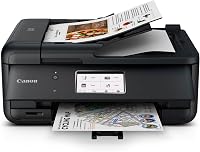
The Canon PIXMA TR7120 adds an automatic document feeder for multi-page scanning and copying, along with AirPrint and Canon PRINT support. It's a better fit when paper documents are part of your routine.
Choose the TS6520 instead if you won't use the feeder and prefer a shorter printer.
The Brother Work Smart 1360 has AirPrint, Brother Mobile Connect, automatic two-sided printing, and a 20-sheet single-sided document feeder. Its app also supports printing from and scanning to popular cloud apps.
Consider it for a home office or school workload that includes multi-page documents; skip it if you only need occasional single-page printing and won't use the feeder or cloud features.
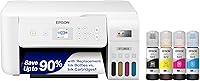
The Epson EcoTank ET-2803 prints from an iPhone through AirPrint or Epson Smart Panel and uses refillable ink tanks instead of cartridges. Epson says its ink supply is based on about 125 pages per month for up to 2 years.
It fits households that print regularly and want a tank system; skip it if you print rarely or want automatic two-sided printing, which it doesn't offer.
For a broader comparison of ink types and everyday features, see our home printer guide.
What setup steps help an iPhone find a new printer?
Connect the printer to Wi-Fi first, then use AirPrint or the printer maker's app to confirm it can print. Keep the network name and password available during setup, and follow the instructions for your model.
If the printer has a display, use it to join the home network. Otherwise, open the maker's app and follow its prompts.
Once the printer is online, try printing a simple page from the iPhone.
Give the printer a stable place near the router during setup. If it loses connection after you move it, check signal strength and reconnect it to the intended network.
What common iPhone printing mistakes should you avoid?
Check the selected printer, paper size, and print options before sending a job. Many missed or poor prints come from an incorrect selection or a setting that doesn't match the paper in the tray.
- Don't choose the wrong printer. If several printers appear, check the model name before tapping Print.
- Match paper to the job. Use the paper size and type set in the print dialog when those controls are available.
- Check copies and pages. Reduce extra copies or select only the pages you need.
- Don't resend a job immediately. First check whether the original is still waiting in the print queue.
- Keep paper loaded and clear errors. An empty tray or paper jam can stop a job even when the iPhone connection is fine.
For double-sided pages, confirm the printer supports automatic duplex and that the option is enabled. If you print a photo, check that the paper and color settings fit the result you want.
How can you fix a print job that is stuck or incomplete?
Cancel the waiting job, clear any printer error, and send it again once the connection is stable. Paper jams, an empty tray, and a lost Wi-Fi connection can interrupt a job.
Check the print queue from the app switcher if the job still appears to be waiting. Cancel it, reload paper if needed, resolve the printer's error, and retry.
If a page comes out blank, check the ink supply and follow the printer's maintenance steps. Our guide to why a printer prints blank pages covers common causes.
Which printer should you choose for iPhone printing?
Pick a basic AirPrint printer for occasional pages, a model with an automatic document feeder for multi-page work, or a refillable tank printer for frequent printing. The Canon PIXMA TS6520 handles everyday home jobs; the TR7120 and Brother Work Smart 1360 suit more document handling, while the Epson EcoTank ET-2803 is aimed at regular printing with refillable tanks.
Before buying, confirm the printer supports AirPrint or has an iPhone app that works with its model. Then choose the features you'll use: duplex printing for two-sided pages, an automatic feeder for stacks of documents, or refillable tanks if you print often.
For a wider set of options, compare wireless printers for home use.
Frequently asked questions
How do I print from my iPhone without AirPrint?
Install the printer maker's iPhone app and follow its setup steps to connect the printer and phone. Then open the file or photo in the app, or use the app's print option.
The steps and supported features vary by printer model.
If the app can't find the printer, check its wireless connection and make sure the phone is on the network the app expects.
Why can't my iPhone find my printer?
Your iPhone may not find a printer if it is offline, connected to another network, or not set up for AirPrint. Wake the printer, confirm both devices are on the same Wi-Fi network, and open the Print menu again.
If it still doesn't appear, check AirPrint support or use the printer maker's app and setup instructions.
Can I print from an iPhone to a printer without Wi-Fi?
Sometimes. A printer may support a direct wireless connection or another mobile printing method through its app, but the available options depend on the model.
Check the printer's instructions for Wi-Fi Direct or other supported mobile printing.
A standard USB connection alone won't connect an iPhone to most home printers.
How do I print a webpage from my iPhone?
Open the webpage in Safari, tap Share, choose Print, select an available AirPrint printer, set the options, and tap Print. If Print isn't visible, scroll through the share sheet's actions.
For a page that is difficult to print cleanly, save it as a PDF and print the PDF from Files.