How to Connect HP Ink Tank Printer to Wi-Fi
To connect an HP ink tank printer to Wi-Fi, open the HP setup app, choose your printer, select your home network, and enter the Wi-Fi password. Keep the printer near the router during setup, then print a test page from your phone or computer.
On this page (9 sections)
- What should you do before connecting an HP ink tank printer?
- How do you connect an HP ink tank printer to Wi-Fi?
- How do you connect the printer using a phone?
- How do you connect the printer from a computer?
- Which HP Smart Tank printer fits a Wi-Fi home setup?
- What should you do if the printer cannot find your network?
- How do you fix an HP printer that shows offline?
- How can you confirm the Wi-Fi connection works?
- What is the simplest choice for wireless home printing?
To connect an HP ink tank printer to Wi-Fi, open the HP setup app, choose your printer, select your home network, and enter the Wi-Fi password. Keep the printer close to the router during setup, then print a test page from a phone or computer.
The same process works for many HP ink tank printers. Button names can vary, but the goal is to place the printer into wireless setup mode and provide the correct network details.
What should you do before connecting an HP ink tank printer?
Prepare the printer, Wi-Fi password, and mobile device before starting setup. Your phone or computer should already be connected to the home network you want the printer to use.
Place the printer near the router for the first connection. A short distance reduces interruptions while the printer receives the network information.
Turn on the printer and wait for it to finish starting. Load paper for a test page, and keep the Wi-Fi password nearby.
You can use a phone, tablet, or computer. The HP Smart Tank 5003 and HP Smart Tank 5100 support mobile and wireless printing, while the HP Smart Tank 5103 supports laptops, PCs, smartphones, and tablets.
If you're still choosing a model, compare an hp printer for home use based on the printing tasks you handle most often.
How do you connect an HP ink tank printer to Wi-Fi?
Use the HP setup app to add the printer and select your home wireless network. The app guides you through the connection and sends the network password to the printer.
How to connect HP ink tank printer to Wi-Fi
- Turn on the HP ink tank printer.
- Install or open the HP setup app.
- Choose the option to add a new printer.
- Select the printer shown in the setup list.
- Choose your home Wi-Fi network.
- Enter the Wi-Fi password carefully.
- Wait for confirmation of the wireless connection.
- Print a test page from the app or another device.
Keep the app open until setup finishes. Closing it while the printer receives the network details can interrupt the process.
After the printer connects, place it where you plan to use it. If that location is far from the router, print another test page before putting the printer away.
How do you connect the printer using a phone?
Connect your phone to the same Wi-Fi network you want the printer to use, then add the printer inside the HP app. The phone acts as the setup device, not as a permanent connection between the printer and phone.
Open the app and allow it to search for nearby HP printers. Select the correct model when it appears, then follow the wireless setup prompts.
The HP Smart Tank 5103 lists app and touch control, and its compatible devices include smartphones and tablets. That suits homes where printing starts from mobile devices.
After setup, open a photo or document on your phone and choose the print option. Select the HP printer, set the paper size, and send the job.
The printer and phone should remain on the same home network. If the phone switches to mobile data or another saved network, the printer may appear offline.
How do you connect the printer from a computer?
Add the printer through the HP setup software while the computer is connected to your home Wi-Fi. The computer should find the printer after wireless setup completes.
Start the HP setup program and choose the option to add or configure a printer. Select the model shown in the device list, then enter the wireless network password.
For Windows, open printer settings and choose the HP printer as the default if you want documents to print there automatically. On a Mac, add it through system printer settings.
Print a simple black-text document first. This confirms that the computer can send a job without adding photo settings or unusual paper choices.
If the printer works from the app but not from the computer, remove the old offline entry and add the wireless printer again. Use the exact model name when several devices appear.
Which HP Smart Tank printer fits a Wi-Fi home setup?
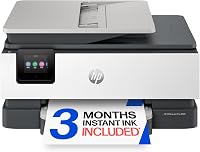
The HP Smart Tank 5003 is the strongest overall pick here because it combines wireless printing, mobile printing, copying, scanning, and up to 3 years of included ink. The HP Smart Tank 5103 suits mobile-first homes, while the HP Smart Tank 5100 gives you another 3-year ink option.
HP Smart Tank 5003
The HP Smart Tank 5003 prints, copies, and scans, with mobile and wireless printing. It includes up to 3 years of HP ink and supports up to 6,000 color or black pages right out of the box.
Its black print speed is 10 pages per minute, and its color speed is 5 pages per minute. It also supports borderless prints and manual duplex printing with driver support.
Choose it for documents, scans, copies, and everyday color pages. Its 17.11 in width and 11.1 lb weight make placement worth planning.
HP Smart Tank 5103
The HP Smart Tank 5103 fits a household that prints from phones, tablets, and computers. It includes up to 2 years of HP ink, supports up to 6,000 color or black pages, and includes copy and scan functions.
Its black print speed is 12 pages per minute, while color printing is 5 pages per minute. It supports app and touch control and includes 100 sheets of HP Everyday Photo Paper 4 x 6.
Pick this model when device flexibility matters more than the longest included ink period.
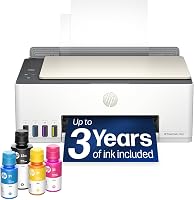
HP Smart Tank 5100
The HP Smart Tank 5100 offers wireless and mobile printing, plus print, copy, and scan functions. It includes up to 3 years of HP ink and supports up to 6,000 color or black pages right out of the box.
It prints black pages at up to 12 pages per minute and color pages at 5 pages per minute. It supports borderless prints and manual duplex printing with driver support.
Choose it for the longer included ink period and faster black print speed. The HP Smart Tank 5003 remains the better overall choice when its broader feature mix fits your home.
What should you do if the printer cannot find your network?
Move the printer closer to the router, reconnect your phone to the intended Wi-Fi network, and restart setup. A wrong network or weak signal is common during first-time setup.
Check that the Wi-Fi name shown in the app matches your home network. Similar names can belong to guest networks, neighboring networks, or separate router bands.
Restart the printer and router, then reopen the setup app. Start the add-printer process again instead of printing through an old offline connection.
If the network remains hidden, use the router's normal visible network option. The app needs to see the network before sending connection details to the printer.
For model choice, our hp vs epson printer comparison can help if you're deciding between wireless ink tank systems from the 2 brands.
How do you fix an HP printer that shows offline?
Reconnect the printer to the same Wi-Fi network used by the phone or computer, then remove any stale offline printer entry. A powered-on printer can still show offline when a device uses a different network.
Open the HP app and check the printer status. If it appears but cannot receive a job, reopen the app and try a small black-text document.
On a computer, remove duplicate entries that use an old connection. Add the wireless printer again, then select it when printing.
Keep the printer powered on during normal use if you want it available for mobile printing. Turning it off removes it from the network until it starts again.
If you need broader buying advice, use this guide to compare a printer for home use by printing volume, device type, and ink needs.
How can you confirm the Wi-Fi connection works?
Print one simple document from the app and one from your main computer or phone. Successful jobs from 2 devices show that the printer is available across your home network.
Start with a short black-text document. This checks the wireless path without adding a large photo file or special paper settings.
Next, send a color document or photo if color printing is part of your routine. The HP Smart Tank 5003 and HP Smart Tank 5100 support color printing, while all 3 models support copy and scan functions.
If a job stays paused, check that the correct printer is selected. Similar names can appear after an earlier setup attempt.
For readers still learning the product category, what is a hp smart tank printer explains how refillable ink tanks differ from cartridge printers.
What is the simplest choice for wireless home printing?
Choose the HP Smart Tank 5003 for the clearest all-around fit, especially if you want wireless printing, scanning, copying, borderless output, and up to 3 years of included ink. Choose the HP Smart Tank 5103 for app and touch control across phones, tablets, and computers.
The HP Smart Tank 5100 is better when you want a 12-page-per-minute black print speed and the longer included ink period. All 3 models support a wireless home setup, so choose based on the features you use most.
To connect an HP ink tank printer to Wi-Fi, start with the app, the correct network password, and a nearby router. Once the test page prints, move the printer to its permanent location and repeat setup only if the new position causes a weak signal.
Frequently asked questions
Why is my HP ink tank printer not finding my Wi-Fi?
The printer may be too far from the router, the network name may be hidden, or the phone and printer may be using different networks. Move the printer closer, reconnect your phone to the intended network, and restart the router and printer before trying setup again.
Can an HP Smart Tank printer connect to a 5 GHz network?
Network support depends on the specific HP Smart Tank model and router setup. If the printer does not find your network, use the network option shown in the HP setup app or connect through the router's compatible wireless band.
How do I reconnect my HP printer after changing the Wi-Fi password?
Open the HP setup app and start the wireless setup again, then select your home network and enter the new password. Remove the old printer connection from your device if it remains offline after the new network details are saved.