How to Use an HP Smart Tank 5101 Printer
To use an HP Smart Tank 5101 printer, fill the ink tanks, turn it on, connect it to Wi-Fi through the HP Smart app, and load plain paper. Then print a test page and run the alignment routine before your first real job.
On this page (10 sections)
- What comes in the box and what should you unpack first?
- How do you fill the ink tanks on the HP Smart Tank 5101?
- How do you turn on and connect the printer to Wi-Fi?
- How do you install the software and drivers?
- How do you load paper and set the paper guides?
- How do you print your first page and align the printhead?
- How do you keep the printhead healthy between jobs?
- How do you scan and copy on the HP Smart Tank 5101?
- What should you do when the printer won't connect or print?
- Which ink and paper should you keep on hand?
To use an HP Smart Tank 5101 printer, fill the ink tanks, turn it on, connect it to Wi-Fi through the HP Smart app, and load plain paper. Then print a test page and run the alignment routine before your first real job.
The 5101 is a print-only ink tank model, so there's no scanner or copier built in. This walkthrough covers the order that matters: ink first, then connection, then software, then paper.
Follow it once and the printer is ready for everyday printing.
What comes in the box and what should you unpack first?
Remove every piece of tape and foam before you plug the printer in. The 5101 ships with protective tape on the printhead carriage and the ink tanks, and leaving any of it in place causes smeared or missing prints.
Set the printer on a flat, stable surface near your router and a power outlet. Keep the box and packing materials for a few days in case you need to return it.
Check that the power cord and any starter ink bottles are present. HP includes a setup ink supply with the printer.
Lift off the top cover to look for tape strips that are easy to miss. Pull the paper tray out and check for foam inserts inside it too.
How do you fill the ink tanks on the HP Smart Tank 5101?
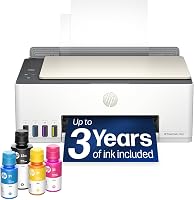
Open the tank cover and fill each color into its matching tank using the spill-free bottles. The tanks are black, cyan, magenta, and yellow, and each bottle nozzle only fits its own tank.
Take the cap off the bottle and push the nozzle into the tank opening. The bottle drains on its own, so you don't squeeze or tilt it.
Stop when the tank reaches the upper fill line, then close the cap firmly.
Don't overfill past the line. Leave the printer upright and don't move it while the tanks are open.
Wipe any drip on the outside of the tank with a dry cloth.
Close the tank cover and wait for the printer to finish its priming routine. This first fill uses some ink to charge the printhead, which is normal.
The HP 31 Cyan, Magenta, Yellow 3-pack covers the color side in one purchase. HP says each bottle yields about 8,000 color pages.
How do you turn on and connect the printer to Wi-Fi?
Press the power button, then use the HP Smart app to join your wireless network. The app does the network setup for you.
Install HP Smart on your phone, tablet, or computer from the app store or HP's website. Open it and choose the option to add a new printer.
The app scans for nearby printers that are in setup mode.
Pick your printer from the list and select your Wi-Fi network. Type the password carefully, since a typo is the most common reason setup stalls.
If the app can't find the printer, move it closer to the router during setup. You can also connect by USB cable as a fallback if wireless keeps dropping.
Once connected, the app shows ink levels and printer status. That's where you'll check supplies and run maintenance later.
How do you install the software and drivers?
HP Smart is the main software, and it installs the driver for you on most systems. On Windows and macOS, the app handles printing, ink monitoring, and basic maintenance in one place.
Download HP Smart from the Microsoft Store or the Mac App Store, or from HP's support site. Run the installer and let it finish before you try to print.
The app detects the printer over Wi-Fi and adds it to your system's printer list.
On Windows, the printer should then appear under Settings, Bluetooth and devices, Printers. On a Mac, check System Settings, Printers and Scanners.
If it's missing, add it manually by its network name.
Skip third-party driver packs. The official app keeps the driver current and gives you the ink-level readout that the printer itself can't show.
How do you load paper and set the paper guides?
Pull out the input tray, slide the guides wide, and drop in a stack of plain paper. The 5101 takes standard letter and A4 sheets, and the guides keep the stack straight.
Fan the paper before loading so sheets don't stick together. Don't fill past the tray's maximum mark.
Push the tray back in until it clicks.
Slide the side and length guides until they just touch the paper edges. Loose guides cause skew, and tight guides cause jams.
For photos or heavier stock, check the paper type in HP Smart before printing.
Set the output tray extension when you print longer jobs. Printed pages stack on top, so leave room for them to land flat.
How do you print your first page and align the printhead?
Send a test page from HP Smart and run the alignment routine before your first real print. Alignment corrects any misregistration in the color output so text and photos come out sharp.
In HP Smart, open printer settings and choose the print quality or maintenance tools. Run the printhead alignment, which prints a page of patterns.
Follow the on-screen steps to finish.
Then print a short document to check the result. Plain text should be dark and even, with no streaks or gaps.
If you see banding, run a printhead cleaning cycle from the same menu.
Set your default print quality in the driver: draft for everyday documents, normal for most jobs, best for photos. Draft uses less ink and prints faster.
How do you keep the printhead healthy between jobs?
Print something at least once a week and run a cleaning cycle when output looks faint or streaky. Ink tank printers keep ink in the printhead, and long idle periods let it dry out.
Use the printer's built-in cleaning routine. One or two cycles usually clear minor clogs.
Don't run cleaning back to back more than a few times, since each cycle uses ink.
Store the printer out of direct sun and away from heat. Keep the tanks filled above the lower line so air doesn't get pulled into the system.
If you'll be away for weeks, print a page before you leave and again when you return.
The HP 32XL black bottle holds enough for up to 6,000 pages, so a single bottle covers months of typical home printing.
A compatible option is the Osinkjet 32XL 2-pack. It's a 165 ml black set with two bottles and a pair of gloves, sold for the same Smart Tank family.
How do you scan and copy on the HP Smart Tank 5101?
The 5101 has no scanner, so scanning and copying happen on a different model. If your setup needs those features, the printer won't do it, no matter what software you install.
Check the model name before you buy. HP's Smart Tank line includes all-in-one versions with a flatbed scanner, and those handle copy and scan jobs.
The 5101 is print-only.
If you already own a 5101 and need to scan, a separate flatbed scanner or a phone scanning app covers the job. For HP models that do include a scanner, our guide to how to scan with an HP Smart Tank printer walks through the glass and the app settings.
What should you do when the printer won't connect or print?
Check the Wi-Fi light first, then the ink levels and the paper path, in that order. Most failures trace to one of those three things, and each has a quick fix.
If the wireless light blinks, the printer lost its network. Reopen HP Smart and run the connection steps again, or move the printer closer to the router.
A reboot of both the router and printer clears many drops.
Faint or missing color points to a clogged printhead. Run a cleaning cycle from HP Smart.
Blank pages often mean the protective tape is still on the printhead or the tanks are below the lower line.
Paper jams come from overfilled trays or misaligned guides. Pull the sheet out gently in the direction of the paper path, then reset the guides.
For a printer that keeps failing setup, a wired USB connection is the reliable fallback.
Which ink and paper should you keep on hand?
Keep a spare black bottle and a color set, plus a ream of plain paper, so a low tank never stops a job. The 5101 warns you in HP Smart before a tank runs dry, and topping up early keeps the printhead from pulling air.
For color, the HP 31 three-pack covers cyan, magenta, and yellow in one order. For black, choose the genuine HP 32XL for its 6,000-page rating or the compatible Osinkjet set for a larger fill.
Plain 20 lb paper suits documents and schoolwork. For photos, use a coated photo paper and switch the quality setting to best.
Store paper flat and dry so it feeds cleanly.
Learning how to use an HP Smart Tank 5101 printer comes down to a short routine: fill the tanks, connect once, print weekly, and refill before empty. Do those four things and the printer stays ready.
If you're still choosing between models, compare the best HP printers for home use or weigh ink tank against inkjet in our printer for home use guide. For a rival take on tank printing, see the best Epson printers for home use.
Frequently asked questions
How do you set up an HP Smart Tank 5101 printer for the first time?
Unpack it, remove all tape and packing material, plug it in, and turn it on. Fill the ink tanks with the matching bottles, load paper, then run the HP Smart app to connect it to Wi-Fi and finish setup.
How do you connect the HP Smart Tank 5101 to Wi-Fi?
Open the HP Smart app on your phone or computer and choose to add a new printer. The app finds nearby printers and walks you through picking your network and entering the password, so the printer joins your Wi-Fi.
How do you scan a document on the HP Smart Tank 5101?
The 5101 is print-only, so it has no scanner and can't scan a document. To scan, use a separate flatbed scanner or a phone scanning app, or move to a Smart Tank model that includes a flatbed.