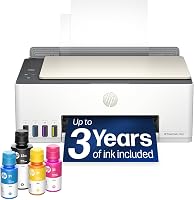
How to Scan With an HP Smart Tank 5101
To scan with an HP Smart Tank 5101, place the original face down on the scanner glass, open HP Smart on your computer or phone, and choose Scan. Pick your save format and resolution, preview the page, then save it to your device.
On this page (10 sections)
- Where do you put the original on the HP Smart Tank 5101?
- How do you scan with HP Smart on a computer?
- How do you scan to your phone with the HP Smart Tank 5101?
- How do you set scan quality and file format?
- Can you scan without ink in the Smart Tank 5101?
- Why does the scan look blank, blurry, or streaky?
- How do you scan multiple pages or save as a PDF?
- What should you check when the printer won't scan?
- Which ink bottles keep the Smart Tank 5101 ready to copy?
- What's the simplest routine for scanning on the 5101?
To scan with an HP Smart Tank 5101, place the original face down on the scanner glass, open HP Smart, choose Scan, set the format and resolution, then save the file. The printer is an all-in-one ink tank model, so scanning is a separate job from printing and doesn't use the ink in the tanks.
The whole process takes a couple of minutes once the printer is set up on your network. The steps below cover the computer app, the phone app, and what to change when the scan looks wrong.
Where do you put the original on the HP Smart Tank 5101?
Lay the page face down on the flatbed glass, aligned to the corner marker nearest the front edge. The 5101 scans from a flatbed only, so there's no document feeder to load.
Lift the scanner lid until it stays open. Place the printed side against the glass, not facing up toward the lid.
Push the paper gently against the corner guides so the text sits square.
Close the lid fully before you start the scan. A lid that sits open lets room light hit the glass and washes out the edges of the page.
Thick items like book pages or ID cards may keep the lid slightly raised. Rest a hand or a book on the lid during the scan to press the original flat.
The glass itself needs to be clean. Dust and fingerprints show up as streaks in the saved image, so wipe the glass and the white underside of the lid with a soft, dry cloth now and then.
How do you scan with HP Smart on a computer?
Open HP Smart, select your Smart Tank 5101, and click Scan on the home screen. The app finds the printer if it's on the same network as the computer.
- Make sure the printer is on and connected to Wi-Fi or USB.
- Open HP Smart and pick the HP Smart Tank 5101 from the printer list.
- Click or tap Scan, then choose the scanner glass as the source.
- Set the color mode, resolution, and file type.
- Preview the page, adjust the crop if needed, and save.
If you installed the full HP driver package, the HP Scan program on Windows or Image Capture on a Mac can scan too. Those tools offer a few extra settings, like custom paper sizes.
Windows and macOS both also list the 5101 as a scanner in their own scan utilities. Use whichever app you find easier, as long as the printer shows up there.
How do you scan to your phone with the HP Smart Tank 5101?
Put the phone on the same Wi-Fi network as the printer, open HP Smart, and tap Scan. The phone camera isn't used; the app reads the flatbed glass.
Tap the printer card, then the Scan tile. A preview of the page appears on the screen within a few seconds.
You can crop, rotate, or switch between color and grayscale before saving.
Save the file to your phone's photos or files, or share it straight to email or a cloud drive. The app can also scan several pages one after another and bundle them into a single PDF.
If the phone can't find the printer, check that both are on the same network band. Guest Wi-Fi networks often block device-to-device connections, which stops HP Smart from seeing the 5101.
How do you set scan quality and file format?
Use 300 dpi and color for most documents, then raise or lower the settings based on what you'll do with the file. Resolution and format decide both the sharpness and the file size.
- 200 dpi: quick drafts and pages you only need to read on screen.
- 300 dpi: everyday documents, forms, and receipts.
- 600 dpi: photos or pages you may reprint later.
- PDF: best for documents you'll email or archive.
- JPEG: best for photos and images you'll share.
- PNG: good when you need a sharp image with a smaller file than a high-resolution scan.
Higher resolution means more detail but also a bigger file and a slower scan. A 600 dpi color scan of a full page can be several times larger than the same page at 300 dpi.
Set the scan to grayscale for text-only pages when you don't need color. It keeps the file small and the text crisp.
Can you scan without ink in the Smart Tank 5101?
Yes, scanning works without ink because the scanner reads light and doesn't touch the print heads. A low or empty tank only affects printing and copying.
HP Smart may still show an ink warning when you open the app. That warning doesn't stop a scan from starting.
If you plan to copy the same pages right after scanning, top up the tanks first so the copy step doesn't stall. Original HP bottles for this printer are covered in our guide to HP Smart Tank ink.
Why does the scan look blank, blurry, or streaky?
A blank scan almost always means the page is face up or off the glass. Check the printed side against the glass and align the paper to the corner marker before scanning again.
Streaks and smudges usually come from a dirty glass or lid. Wipe both surfaces with a dry microfiber cloth and rescan.
A blurry scan can come from a page that moved during the scan. Keep the lid closed and don't touch the printer until the preview appears.
If the colors look dull, check that the scan is set to color and not grayscale. For photos, 600 dpi brings back detail that 300 dpi loses.
A scan that saves to the wrong folder is an app setting, not a printer fault. Check the save location in HP Smart's scan settings and change it once.
How do you scan multiple pages or save as a PDF?
Scan each page to the glass in turn and add them to one file, since the 5101 has no automatic document feeder. HP Smart lets you keep adding pages before you save.
Scan page one, then choose the option to add another page. Lift the lid, swap the sheet, and scan again.
The app stacks the pages in order.
When all pages are in, save the stack as a PDF. That's the handiest format for forms, contracts, and school packets.
For a single page, a JPEG or PNG is quicker to share. Save a PDF when the order of pages matters or when you'll email the file to someone else.
If you scan often, keep a folder just for scans so files don't get lost in your downloads.
What should you check when the printer won't scan?
Confirm the printer is on, connected, and selected in the app before you change anything else. Most "won't scan" problems are a connection or selection issue.
Check the Wi-Fi light on the printer and make sure the computer or phone is on the same network. If the printer shows offline, restart it and reopen HP Smart.
Close any other program that may be holding the scanner, such as an old HP Scan window. Only one app can use the scanner at a time.
If the printer still doesn't appear, remove it from HP Smart and add it again. The app walks you through the setup steps.
A scan that starts and then stalls can be a large file at a high resolution. Drop to 300 dpi and try once more.
Which ink bottles keep the Smart Tank 5101 ready to copy?
Original HP 31 color bottles keep the cyan, magenta, and yellow tanks filled, and the black tank needs its own bottle. The printer scans without ink, but copying and printing need it.
HP says this three-pack works with the Smart Tank 5101 and covers about 8,000 color pages. The bottles plug into the tanks and drain without squeezing.
If you'd rather compare original ink against a subscription plan, our HP Instant Ink vs Smart Tank breakdown covers the cost differences.
The Osinkjet set holds two 165 ml black bottles and lists the Smart Tank 5101 among its compatible models. It's a fit for households that print a lot of text pages between color top-ups.
The Topcolor set includes one black bottle and the three colors in a single pack. That suits a first refill when several tanks run low at once.
If you're still choosing between HP's ink tank models, our roundup of the best HP printers for home use compares them by household need. Readers who want a small all-in-one from another brand can check our Brother Work Smart 1360 review for a comparison point.
What's the simplest routine for scanning on the 5101?
Keep the glass clean, scan at 300 dpi, and save documents as PDFs. That routine covers most home scanning without extra settings or apps.
Load the page face down, open HP Smart, pick Scan, and save. Use 600 dpi only for photos or pages you may reprint.
Scan to your phone when you want to email the file right away, and to the computer when you'll file it on a drive.
Scanning never uses the ink in the tanks, so a low tank won't stop a scan. Keep the tanks filled for copying and printing with original HP 31 color bottles and a black bottle for the 5101.
If a scan comes out blank, turn the page over before blaming the printer. That one check fixes most of the how to scan with HP Smart Tank 5101 questions we hear, and the rest are usually a dirty glass or an offline printer.
Frequently asked questions
Does the HP Smart Tank 5101 have a scanner?
Yes. The HP Smart Tank 5101 is an all-in-one ink tank printer, so it has a flatbed scanner built in on top of the print engine.
You scan from the glass, not from a document feeder, so each page goes on the glass by hand.
What app do I use to scan on the HP Smart Tank 5101?
Use the free HP Smart app on Windows, macOS, Android or iOS. Add the printer once, then tap or click Scan on the home screen.
You can also scan from the HP Scan software on a computer if you installed the full driver package.
Why does my HP Smart Tank 5101 scan come out blank or streaky?
A blank scan usually means the page is face up or on the wrong corner of the glass. Streaks often come from dust or fingerprints on the glass or the underside of the scanner lid.
Wipe both with a soft, dry cloth and scan again.
What resolution should I use when scanning on the HP Smart Tank 5101?
Use 300 dpi for documents you plan to read on screen or email. Raise it to 600 dpi for photos or pages you may reprint, and keep 200 dpi for quick drafts.
Higher settings make larger files and slower scans.